Using Tree Widget
We will build a tree using a simple static structure
- Drag and drop a tree widget in your canvas. Tree widget comes with multiple nodes ![tree_dnd]
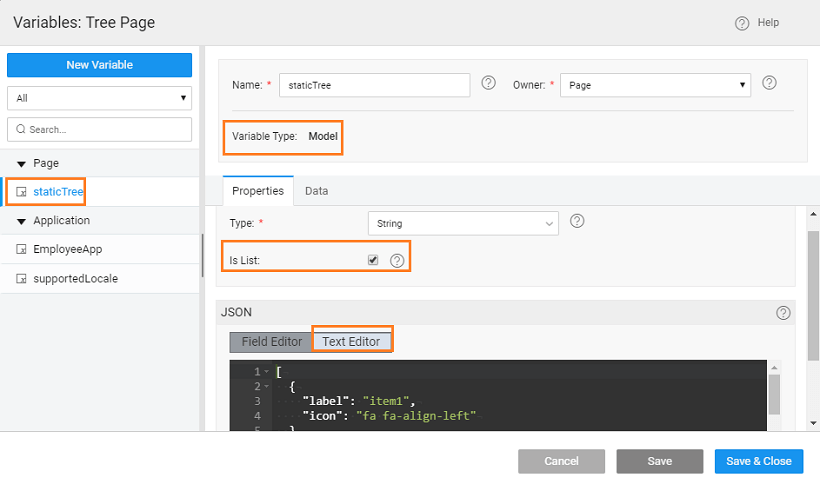
- Create a static variable giving the structure of the data to be displayed in the tree. Ensure that the IsList check box is selected.
- In the Text Editor enter the following code:
![![tree_dnd]](/learn/assets/tree_dnd.png)
In this code we are specifying the node structure - the label on each node, icon to be displayed at each node and any child-level nodes. Icons can be halflings from glyphicons or font awesome icons.
If you follow this structure, the label, icon, link and children tags are picked automatically. If you are using different tag names, then you need to specify them while binding.
- Next, bind the dataset value property of the tree widget to the dataset under the static variable created in the previous step. [![tree_bind] You can see the preview on the canvas.
- Run the application and see the menu in action.


Tree can be bound to a Java Service which returns an arraylist of Label, icon and has its own pojo as children. We will address one such scenario here.
Step 1: Create Source - Java Service
Create a Java Service by name TreeData [![tree_JS]
The following code needs to be added to the Java service:
import the ArrayList utility:
- add the following array structure:
- add the following methods:
- and the following main method:
Step 2: Binding
- Create a Service Variable using the Java Service created in the earlier step
- Drag and drop a tree widget onto the canvas and bind the dataset value to the Service Variable created in the above step
- Set the properties of Node Label, Icon and Children respectively
Step 3: Test Run
- Run the app and see the tree in action.
If you have a requirement, whereby the user decides the structure of the tree. For example, you are building a folder-file structure and the user decides how many folders and files are to be present in a tree. This section deals with such a situation.
Step 1: Create Source - Script Variable
- Drop a Tree widget and 2 buttons (Add File, Add Folder) onto the canvas
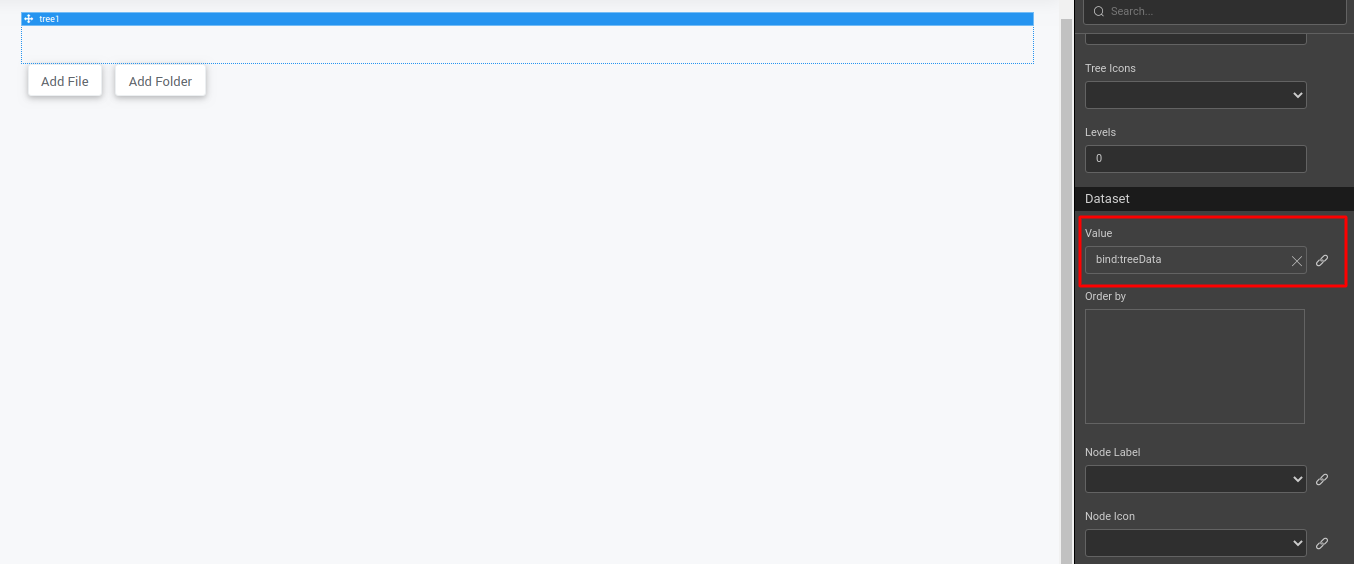
- Select the Tree widget and specify a Script Variable as dataset property, "treeData" Use the following for treeData in the Script:
- Select JavaScript for the onSelect event of the tree widget as:
Step 2: Event Mapping
- Select JavaScript for the click event of the buttons, Add File and Add Folder
- Code for the click events would be:
- For Add File:
- For Add Folder:
Step 3: Test Run
- Run the application and see the tree in action.